

Description
Caffeinated prevents your Mac from going to sleep, dimming the screen brightness, or activating the screen saver.
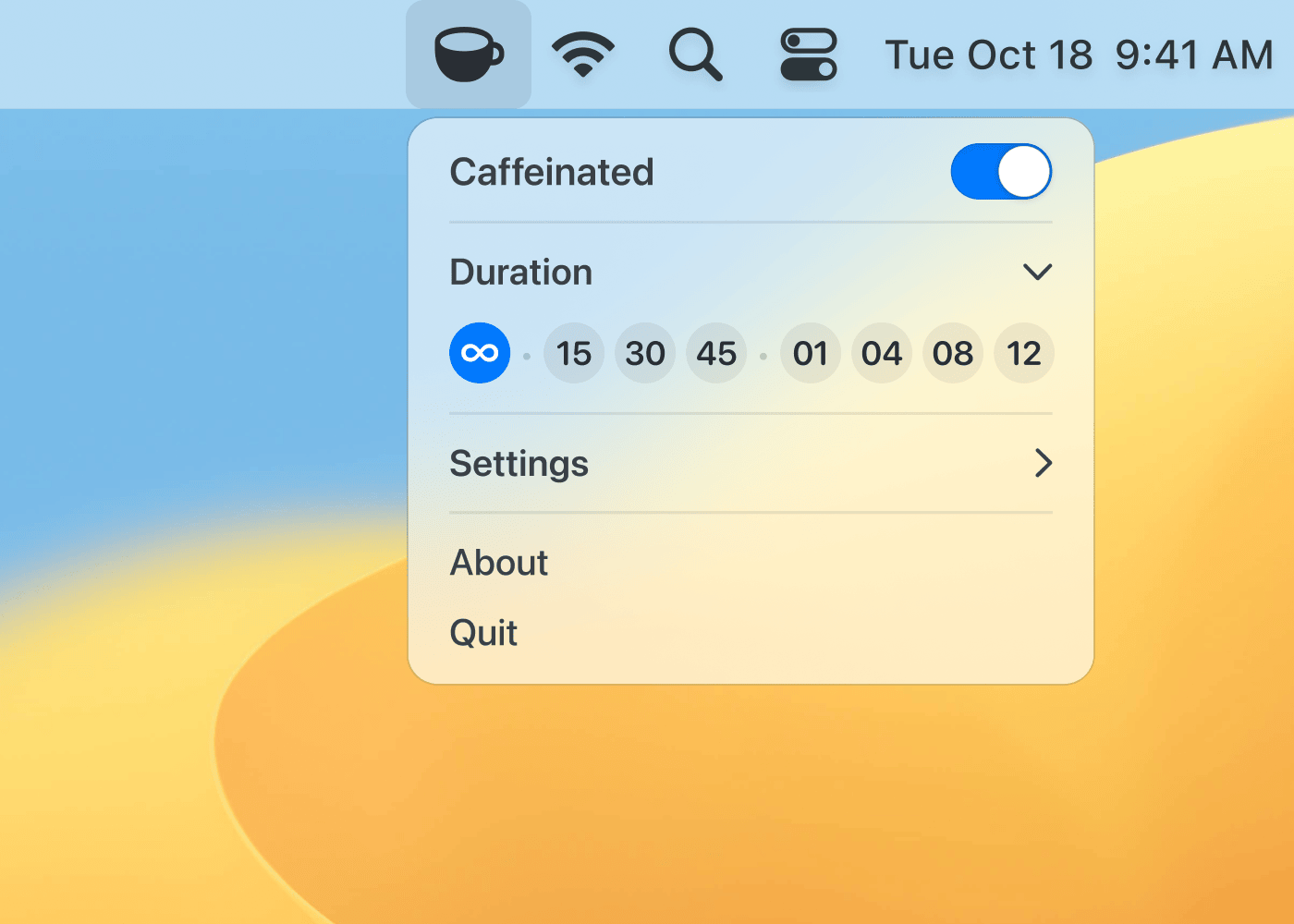
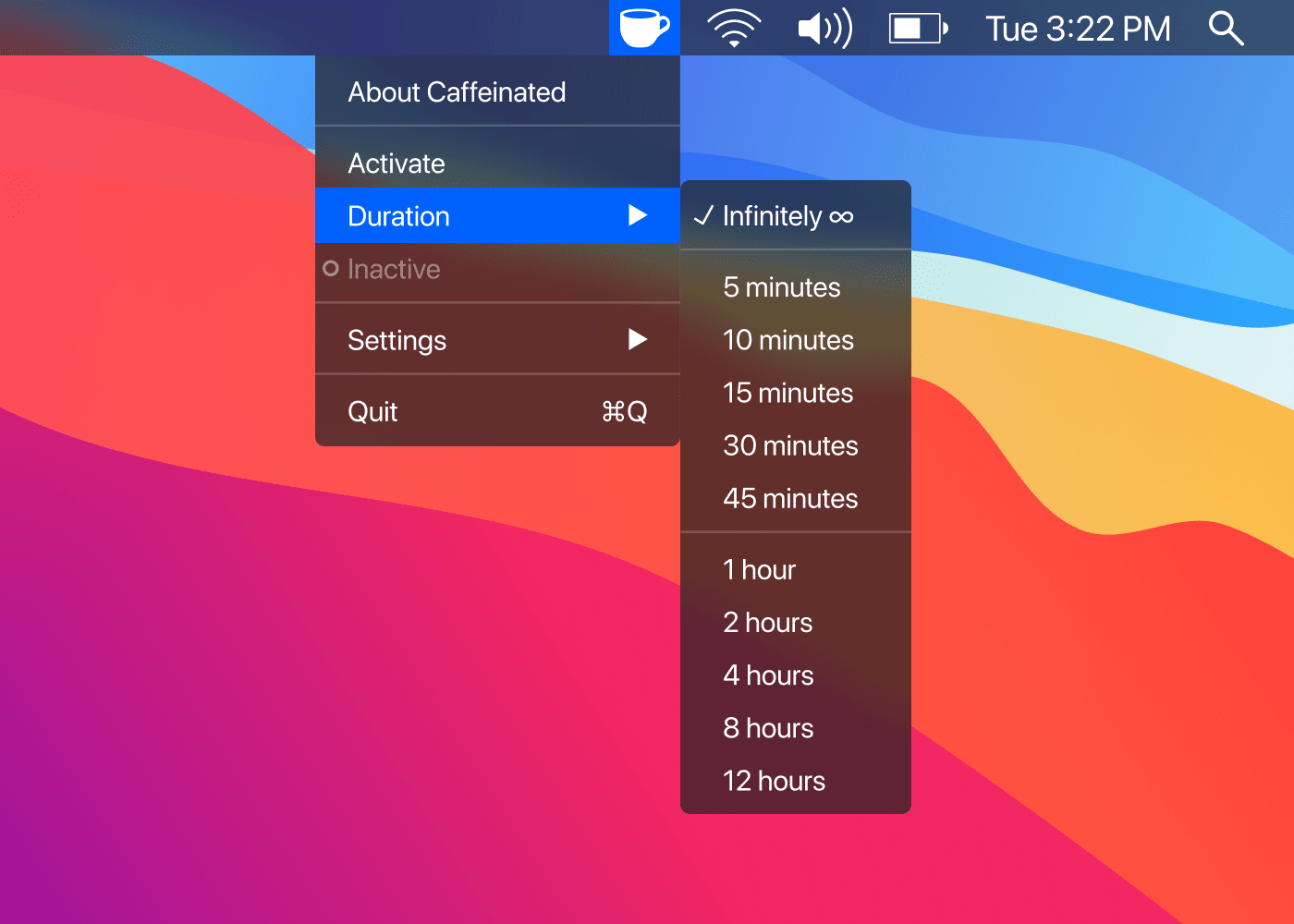
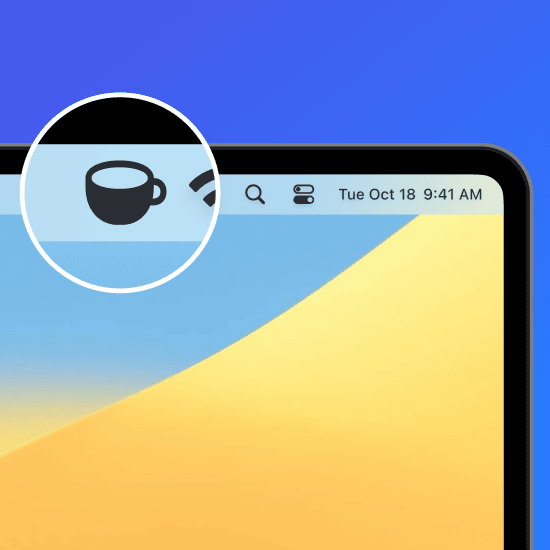
Have you ever experienced your screen going dark at the most inconvenient moment? Then Caffeinated is the perfect tool for you. This caffeinated Mac app was built upon the foundation of the well-known Caffeine utility. Caffeinated brings back those classic functions to your Mac, only better than ever before. A single click on the coffee cup icon in the menu bar is all it takes to keep your Mac fully awake. When needed, you can explore additional options within the beautifully designed and easy-to-use application interface.
I always use Caffeinated when ...
... making a video call.
... downloading large files.
... giving a presentation at work.
... watching videos at home.
... listening to a podcast.
Features:
• One-click activation (using either left or right mouse button)
• Convenient control via the menu bar icon
• Built-in timer with optional notification alerts
• Various additional customization options
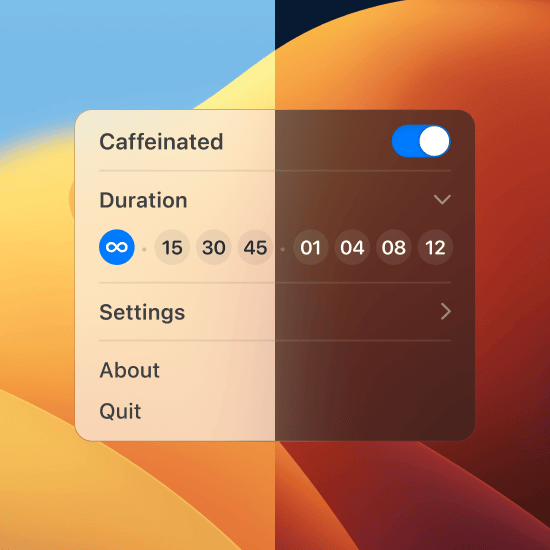
• Fully optimized for Retina displays and Dark Mode
• Optimized for Apple Silicon processors
• Full compatibility with system accent colors
• Compatible with all modern versions of macOS
With caffeinated download and installation on your Mac, you gain a lightweight yet powerful utility that ensures your computer stays awake exactly when you need it to. Whether you are in the middle of an important task or simply enjoying media content, this caffeinated Mac solution keeps your display active without any interruptions.
Reviews & Comments
No comments yet. Be the first to share your experience.