
Description
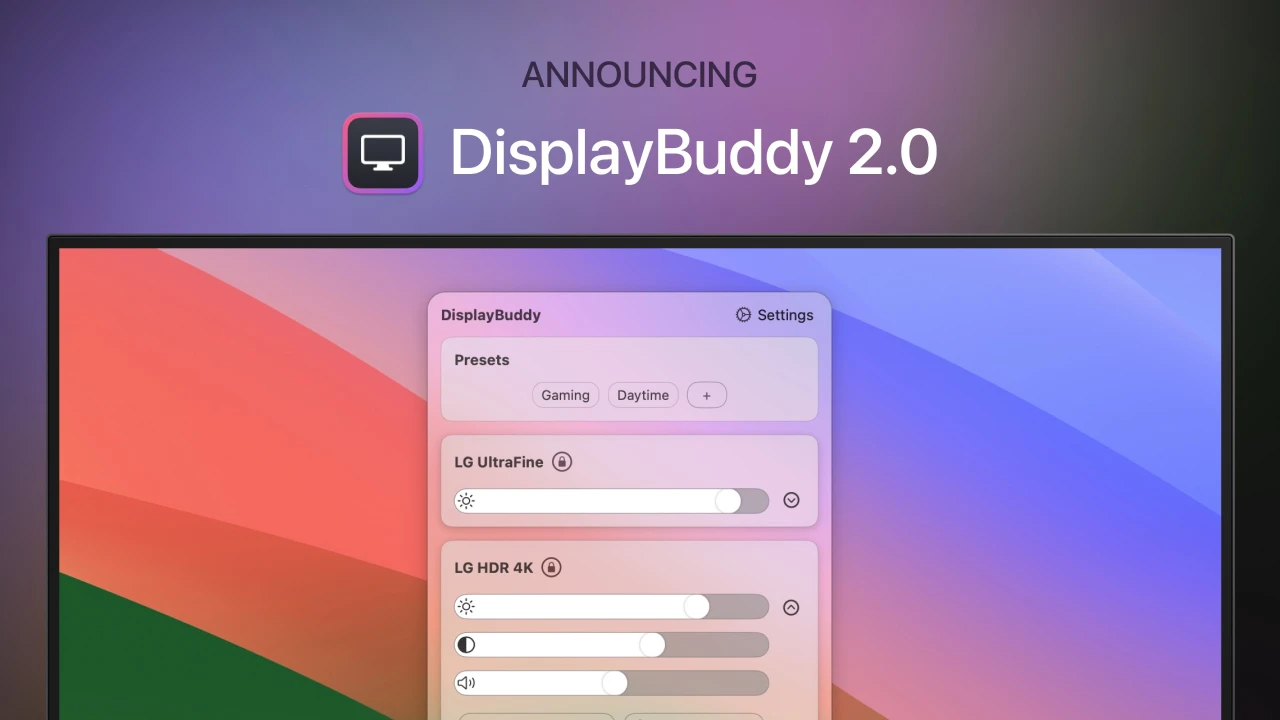
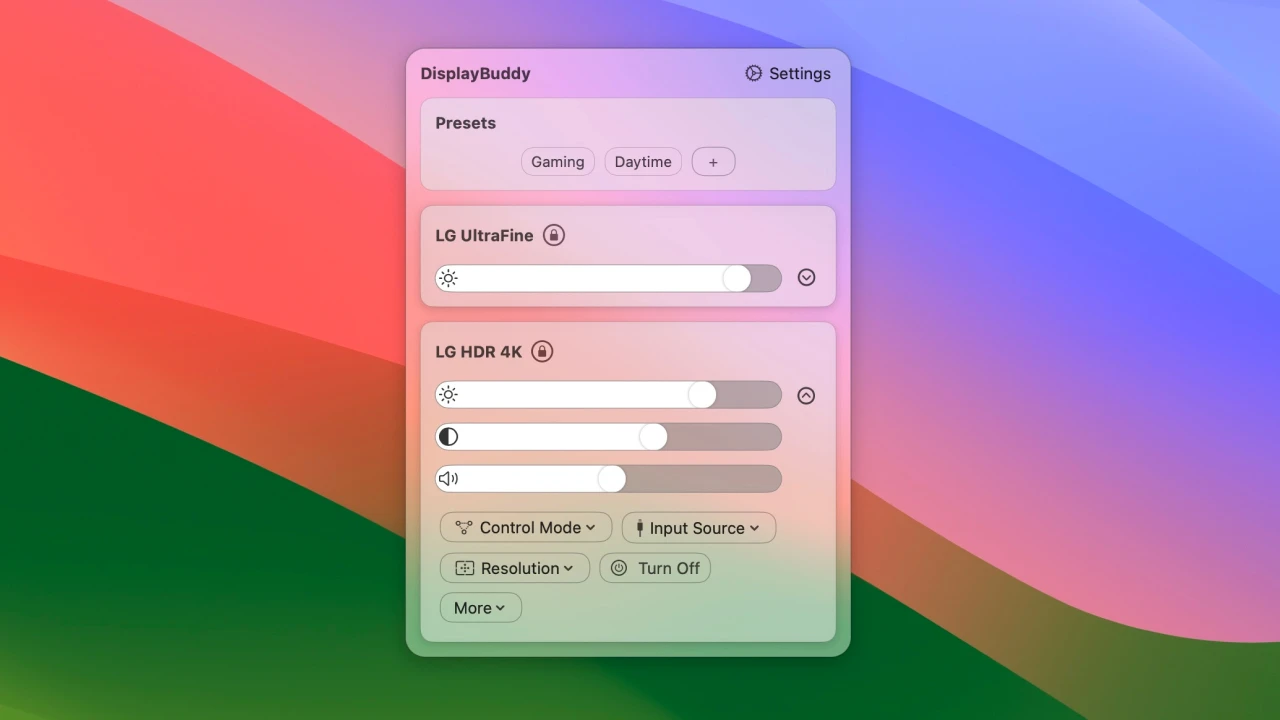
DisplayBuddy is a display management application designed specifically for Mac users. It allows you to adjust display brightness directly from your Mac, without the need to press awkward buttons on your monitor. It provides best-in-class support for third-party displays and external monitors. With the displaybuddy app, users can control brightness, contrast, and even the volume of external displays. Additionally, it supports preset creation, which allows you to save settings for multiple displays and easily restore them with just a single click of the mouse.
The multi-monitor management feature of displaybuddy mac lets you control all connected displays, and also manage them using the brightness and volume keys on your keyboard. It also supports custom keyboard shortcuts, making it much easier to manage your display settings on the fly. Furthermore, DisplayBuddy can synchronize the brightness and contrast of multiple displays simultaneously, easily switch between various input sources such as HDMI, DisplayPort, USB-C, and others, as well as activate presets right from your desktop using the macOS Sonoma widget. On top of that, it features the UltraBright function, which doubles the display brightness of your MacBook Pro during sunny days.
displaybuddy macos is a powerful tool that can significantly boost the productivity of your everyday workflow. Save time and effort by automating the adjustment of your monitor's brightness, contrast, or volume settings with ease.
Features: -Control brightness without touching the bulky buttons on your display -Best-in-class support for third-party displays ensuring maximum convenience when working on any external monitor -Control actual brightness, contrast, and even the volume of external displays directly from your Mac -Save settings for multiple monitors and restore them with a single click of the mouse -Manage all your monitors at a glance from one unified application -Control your monitors using the brightness and volume keys on your keyboard -Create custom keyboard shortcuts for monitor control or use the brightness and volume keys directly from your keyboard -Synchronize the brightness and contrast across multiple monitors simultaneously -Switch between HDMI, DisplayPort, USB-C, and other input sources with just one click of the mouse -Activate presets right from your desktop using macOS Sonoma widgets -Double the brightness on MacBook Pro displays - the perfect solution for bright and sunny days -Supports Apple Studio Display, Pro Display XDR, Apple Thunderbolt Display, and iMac -Full DDC support on Mac computers with Apple Silicon chipsets including M1, M2, and M3 series
Reviews & Comments
No comments yet. Be the first to share your experience.