


Description
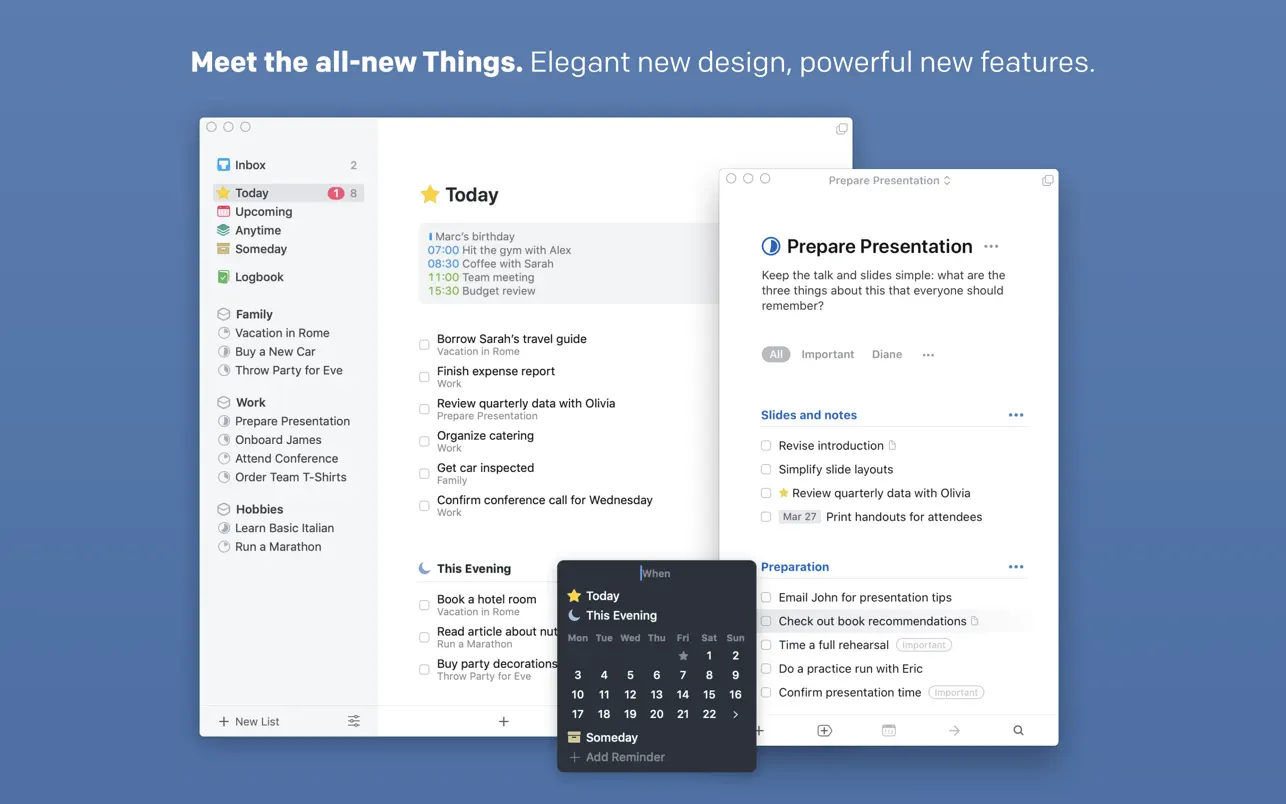
A clean and simple interface, a well-thought-out structure, and powerful functionality. The beloved task planner is back – recognizable yet thoroughly refreshed!
Here are the core principles behind Things 3.
1. Capture everything that comes to mind
Don't keep tasks in your head – write them down the moment they occur to you. Adding tasks in Things 3 for Mac is as easy as pressing a keyboard shortcut (which works from within any application on your Mac) or simply asking Siri to do it for you.
2. Organize your tasks by context and projects
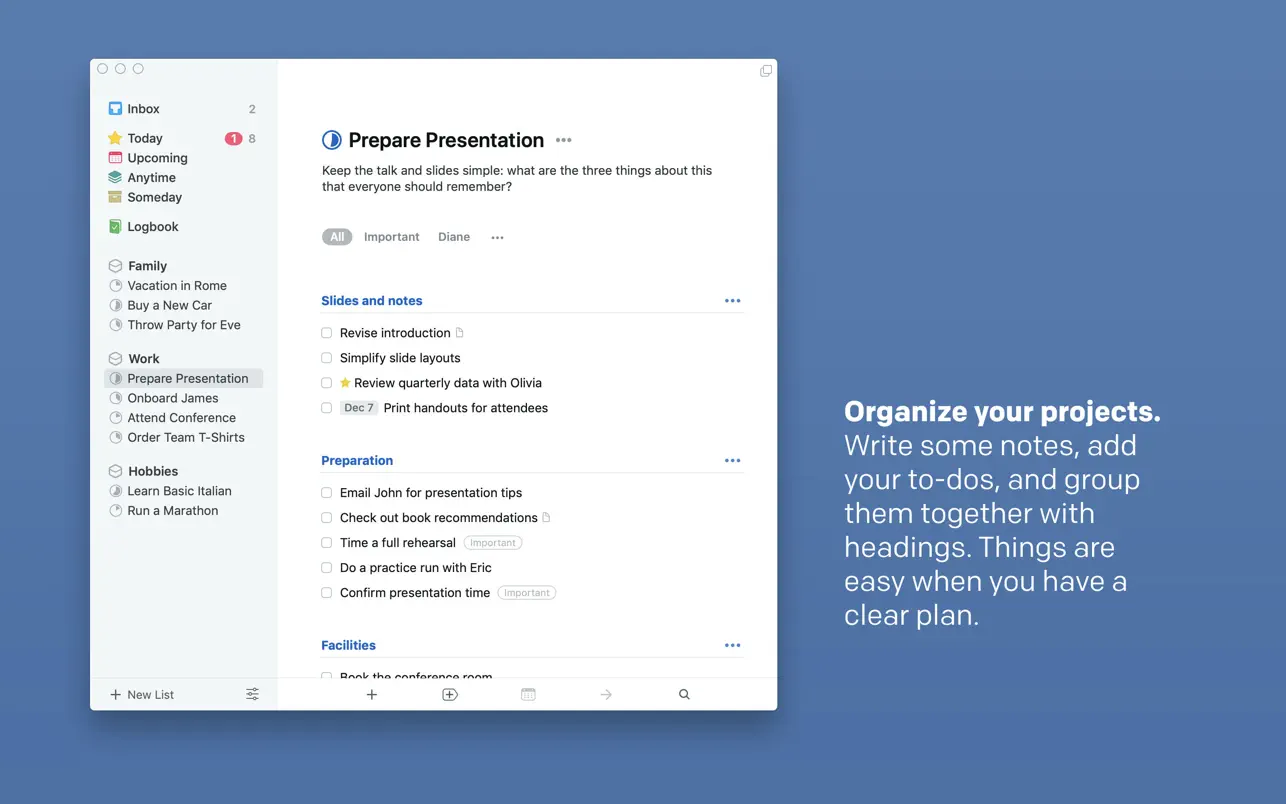
Create a dedicated project for every major goal, then fill it with specific, actionable tasks that can each be completed in a single sitting. Additionally, you can group projects and tasks into broader areas of responsibility – for example, "Work," "Hobbies," or "Health." Make it a habit to regularly look through all your areas and keep them up to date.
3. Plan your time wisely and efficiently
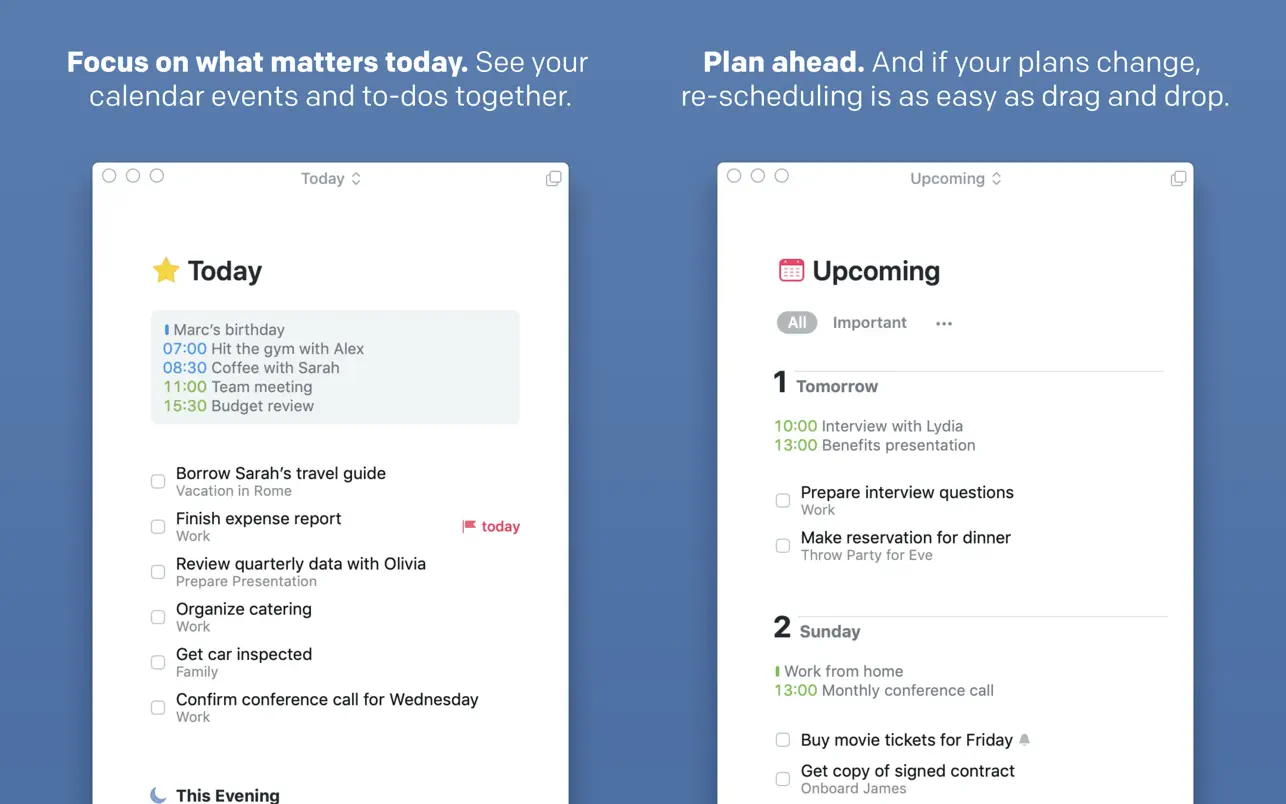
Events from your macOS calendar and your tasks within the Things 3 app are displayed together in one unified list, making it easy to build a complete weekly schedule without missing anything important. For recurring tasks, you can effortlessly set up repeating reminders at exactly the time you need them.
4. Cut out the noise and distractions
Each morning, open your Inbox, pick out the tasks you want to tackle today, and move them into the "Today" section. Any tasks you previously scheduled for today will automatically appear in this section as well. That's it! You don't need to look at any other lists or folders. Simply settle in and get to work with a clear mind.
5. Structure your tasks in a way that makes perfect sense to you
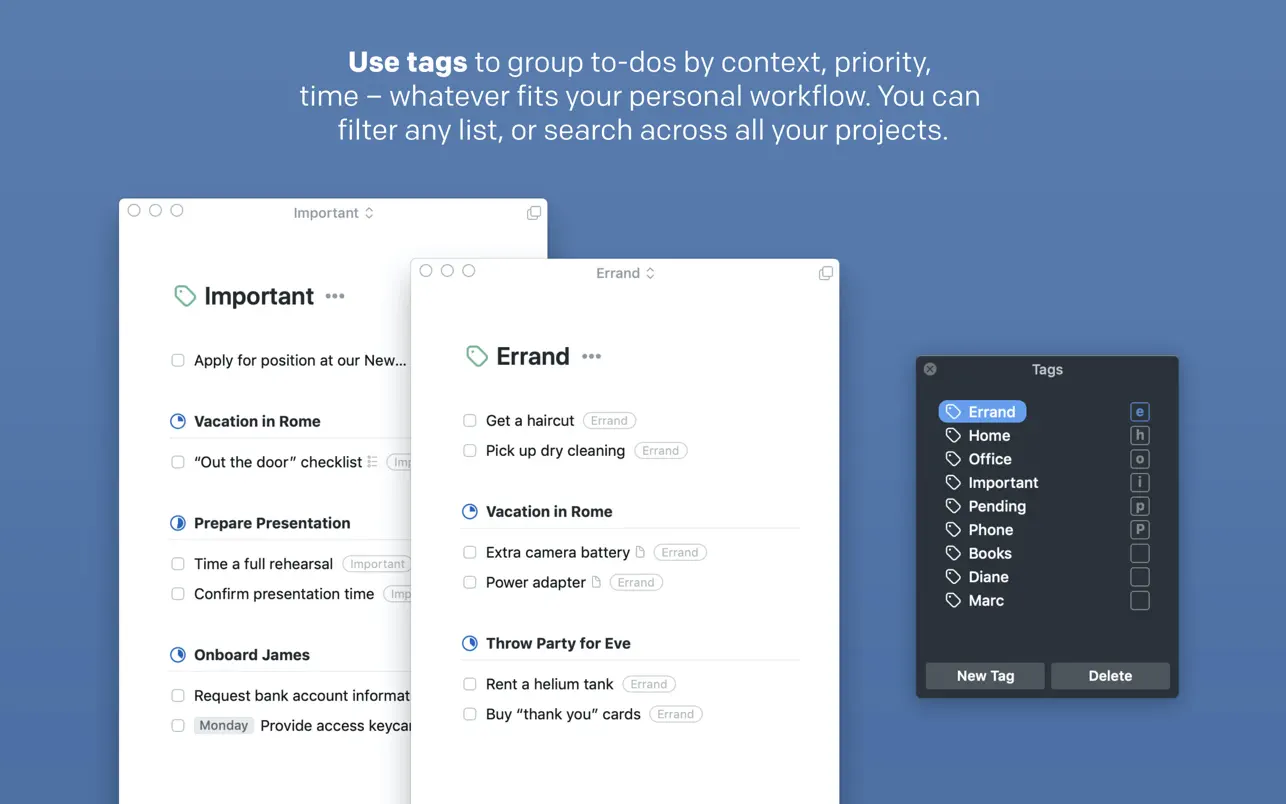
To further organize your tasks, label them with your own custom tags. Assign a "Work" tag when you need to write a quarterly report, or a "Home Errands" tag for things like dropping off a jacket at the dry cleaner or ordering cat litter. You can create as many tags as you like, and easily search for specific ones or filter your entire task lists by them.
REASONS YOU WILL FALL IN LOVE WITH THINGS
1. Things 3 Mac never gets in the way of your work.
It features an intuitive, carefully designed, human-friendly interface where everything is exactly where you expect it. No intrusive special effects, no unsolicited pop-up windows, and no menus with a hundred confusing options. Just you and your tasks, nothing else.
2. Things is deeply focused on your tasks.
Within a list, tasks appear as concise items you can simply check off with a tick. But double-click any task with your mouse – and it opens up as a clean, spacious white canvas that can hold all the information you need, including notes, clarifications, step-by-step checklists, tags, deadlines, and reminders.
3. It is full of delightful thoughtful details
Take the Type Travel feature alone – an incredibly intuitive way to search and navigate through all your sections and lists. Or the natural language date parser, which correctly understands you when you type things like "tomorrow," "in three days," or "next Tuesday."
4. It is one of the most meticulously crafted applications for macOS.
Things 3 for Mac supports every key system feature of macOS: the Touch Bar panel, the Notification Center widget, the Share extension, Handoff mode, seamless data exchange with the built-in Calendar and Reminders applications, and powerful automation through AppleScript.
5. Your own personal favorite feature.
If you were to ask twenty different people, each one would have their own unique list of the most useful and well-executed features in the Things 3 app. That is precisely why user testimonials are published on the website: thingsapp.com
WORK WHEREVER AND WHENEVER IT SUITS YOU
To help you stay productive on the go, there are also Things versions for iPad, iPhone, and Apple Watch (each sold separately). To synchronize all your data seamlessly across every device, all you need is a complimentary account on the Things Cloud platform.
Reviews & Comments
No comments yet. Be the first to share your experience.